
Gemini Related Questions
Author: goswitch
Updated: 2026-06-13T10:02:01.000Z
Gemini CLI Usage Issues and Recommendation
Current Status
Gemini CLI currently has multiple usage issues, such as possibly not being able to call models properly or not being able to paste images. Therefore, it is generally not recommended to connect Gemini-3 to Gemini CLI.
More Recommended Approach
- Prioritize using third-party VSCode plugins like Roo Code
- If you must use Gemini CLI, we recommended using the Gemini-slb group channel (enterprise account pool, more stable)

Important
If you don't know how to use Roo Code, we recommend using Gemini-slb group channel models in Gemini CLI. Gemini-3 generally connects to this group's account pool with a good experience. The models supported by each group can be found in the Gemini-slb group description content to avoid configuration issues with "no available channels" or "model not found" errors.
Special Reminder
- When using third-party tools like Roo Code, select the
OpenAI Responserequest format
How to Use Gemini-3 in Cline
Software Requirements
| Software | Version Requirement | Download Link |
|---|---|---|
| VSCode | 1.80.0+ | Download VSCode |
1. Create Gemini Group Token
Follow the method in Create API Token to create a token in the gemini group as shown below:
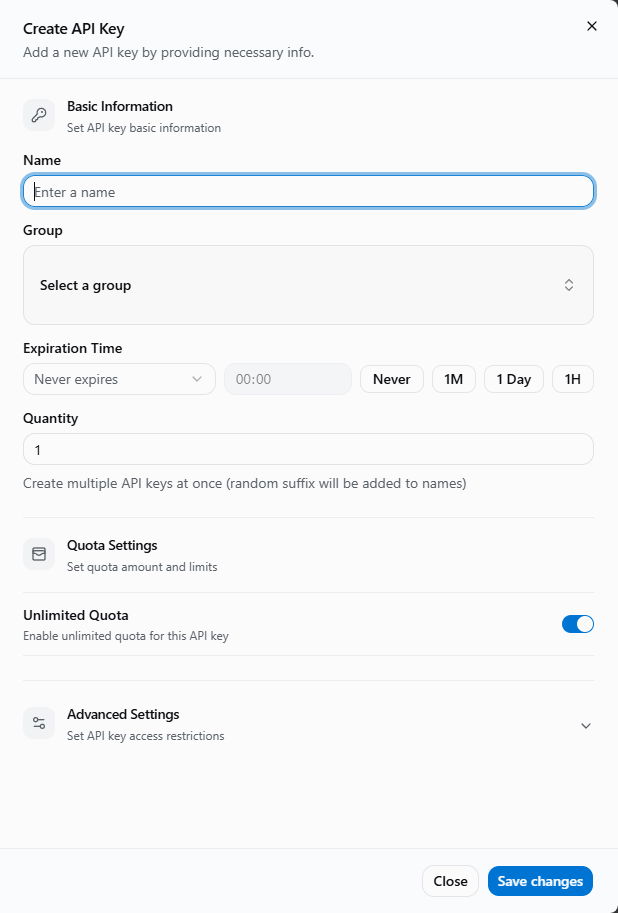
Create API select group diagram
2. Install Cline Plugin
- Open VSCode
- Click the Extensions icon in the left sidebar (or press
Ctrl+Shift+X/Cmd+Shift+X) - Search for Cline in the search box
- Find the Cline plugin and click Install
Installation Tips
- After installation, the Cline icon will appear in the left sidebar
- First-time use requires API Key configuration
- Recommended to install the latest version for the best experience
3. Open Cline Interface
After installation, there are two ways to open Cline:
Method 1: Sidebar Icon
- Click the Cline icon in the VSCode left sidebar
Method 2: Command Palette
- Press
Ctrl+Shift+P(Windows/Linux) orCmd+Shift+P(macOS) - Enter
Cline: Open - Press Enter
4. Initial Configuration
After opening the Cline interface, follow these steps to configure:
- Click the API Configuration button
- Fill in the configuration information as follows
API Provider: OpenAI-compatible
Base URL: https://goswitch.online/v1
API Key: sk-*****
Model ID: gemini-3-pro-preview
Cline configuration interface diagram
Security Reminder
Please keep your API Key safe and do not disclose it group chats or public screenshots.
Existing User Note
If you previously used Cline, click the ⚙️ Settings button in the top right corner to enter the configuration interface.
Configuration Parameter Description
| Configuration Item | Recommended Value | Description |
|---|---|---|
| API Provider | OpenAI-compatible | Recommended to select this option, which supports more models |
| Base URL | https://goswitch.online/v1 | GoSwitch compatible endpoint |
| API Key | sk-****** | Your GoSwitch API Key |
| Model ID | gemini-3-pro-preview | Recommended to use the code-specialized model |
5. Complete Configuration
Click Done in the top right corner.