
Gemini Configuration
Author: goswitch
Updated: 2026-06-13T10:02:01.000Z
Windows
- Press "Win+R" on your keyboard, enter the following and press Enter to open the Gemini CLI configuration directory
%userprofile%\.gemini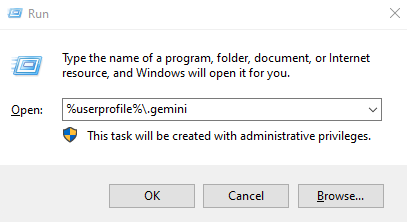
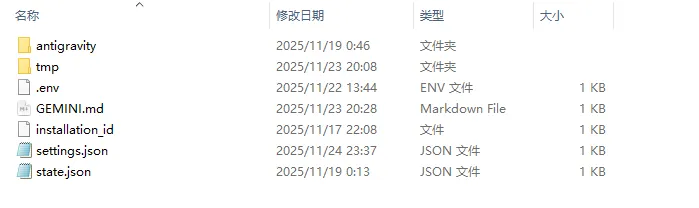
- If there's no
.envfile in the directory, create a new.envfile and write the following content
- .env: Gemini CLI configuration file, mainly setting custom endpoint, ApiKey, and model used
GOOGLE_GEMINI_BASE_URL=https://goswitch.online
GEMINI_API_KEY=xxx
GEMINI_MODEL=gemini-2.5-pro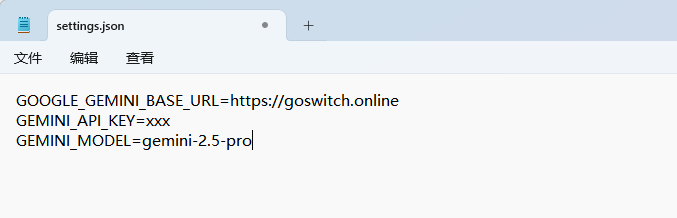
- Review Create API Token, create a Gemini group token in GoSwitch, copy the ApiKey and fill it in for
xxx

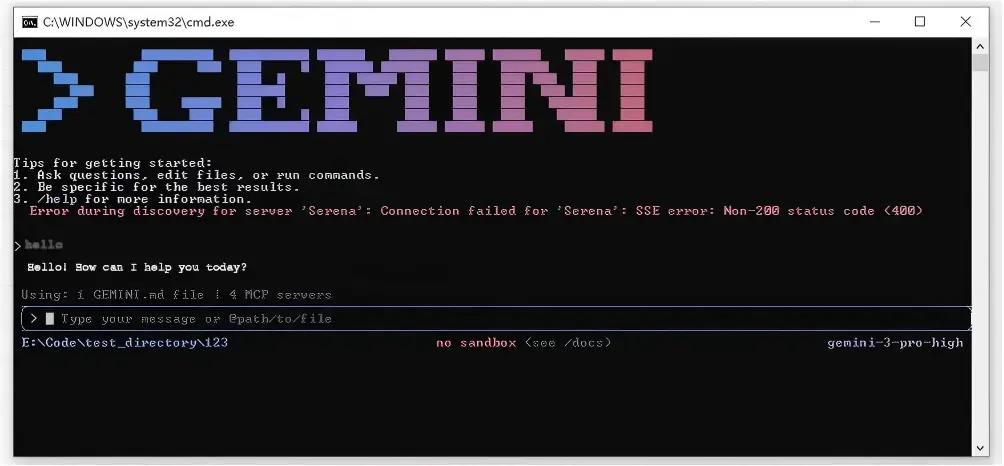
- Open a terminal and run
gemini. When the interactive interface appears and responds normally, configuration is successful
MacOS
- Press "Command+Shift+G", enter the following path and press Enter to open the configuration directory
~/.gemini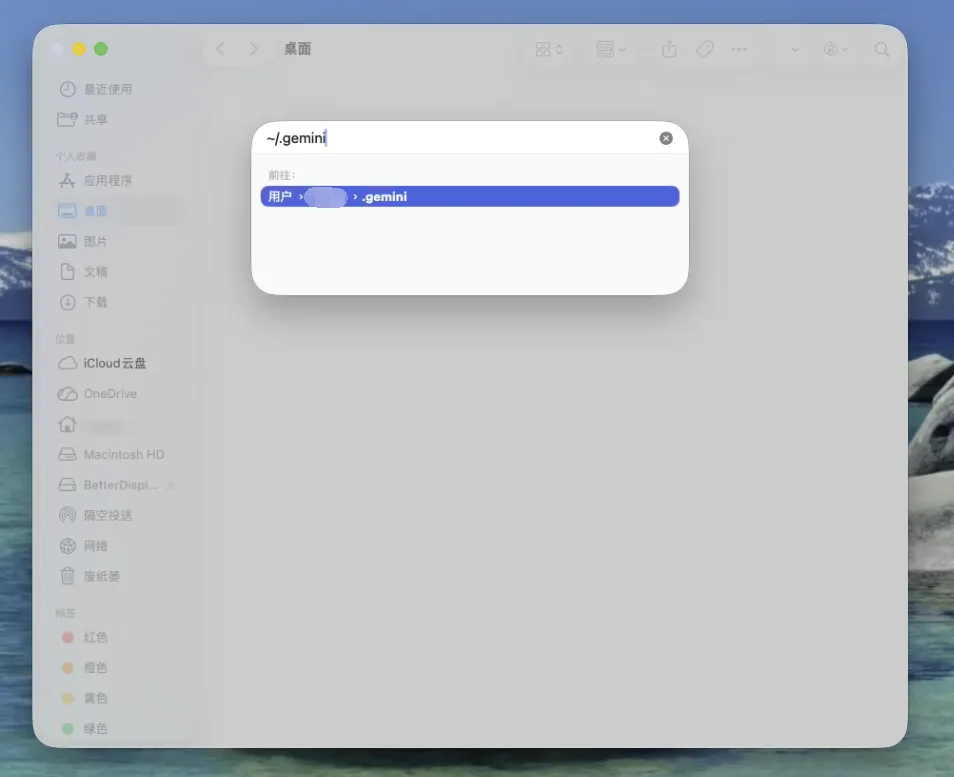
- If there's no
.envfile in the directory, create one and write the following content
- .env: Gemini CLI configuration file, mainly setting custom endpoint, ApiKey, and model used
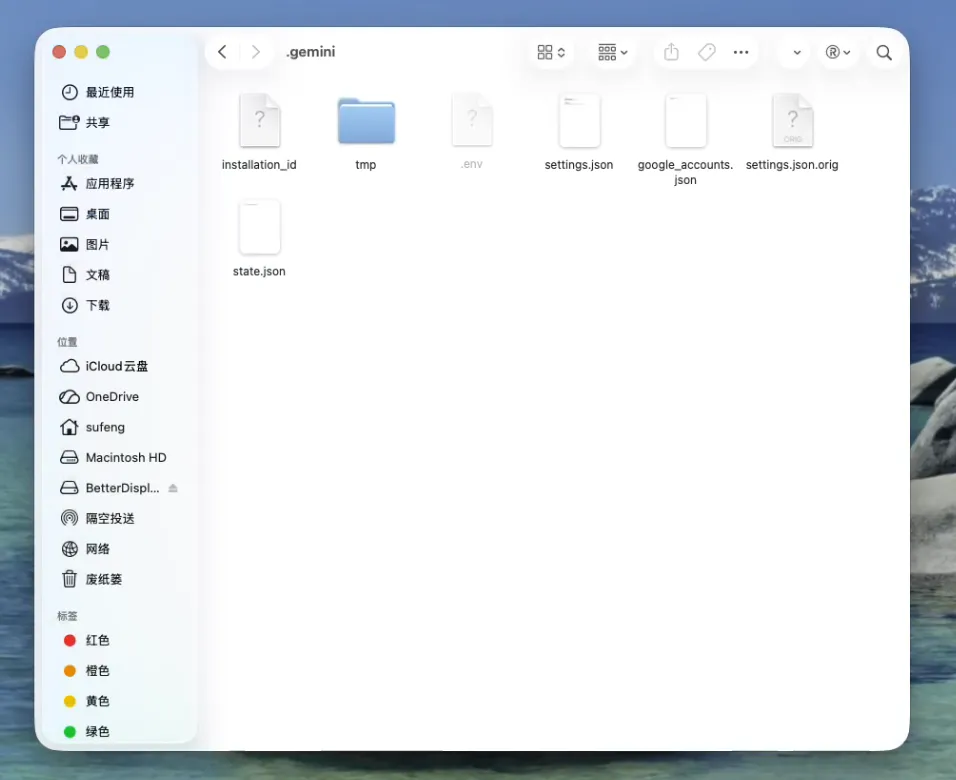
GOOGLE_GEMINI_BASE_URL=https://goswitch.online
GEMINI_API_KEY=xxx
GEMINI_MODEL=gemini-2.5-pro- Review Create API Token, create a Gemini group token in GoSwitch, and fill in
xxx
- Run
geminiin the terminal. If you can enter the dialogue normally and receive replies, configuration is complete