Environment Check (Common Steps)
Author: goswitch
Updated: 2026-06-13T10:02:01.000Z
(1) Confirm Node.js is Installed
- Enter the following command in a Windows or macOS terminal
npm list -g --depth-0Normally it should look like the image below (no content is also fine). If you see "command not found", it means you haven't installed Node.js. You need to follow this tutorial to install the environment required for Claude Code, Codex, and Gemini
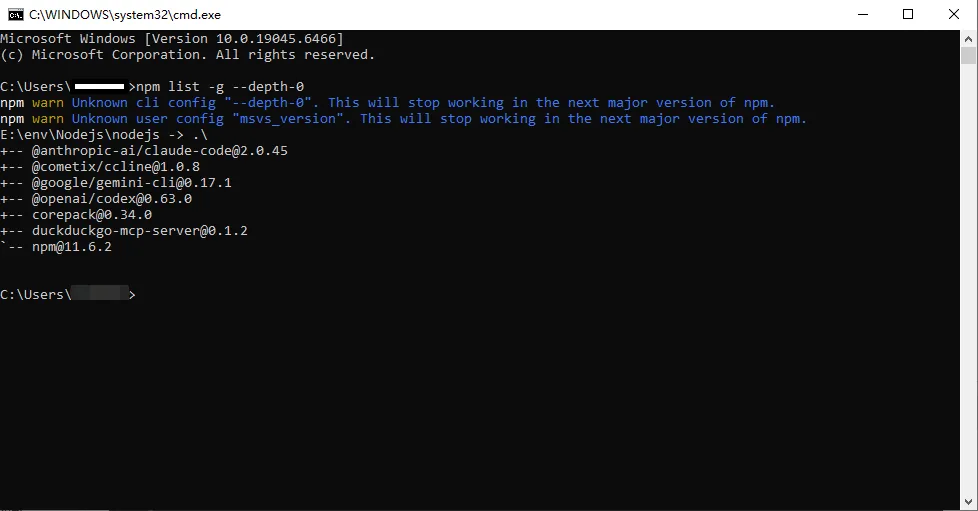
- If you discover Node.js isn't installed and have now completed the installation following the tutorial, please re-run the command above. If it no longer says "command not found", the installation was successful
(2) Install CLI
- Enter the following commands in a Windows or macOS terminal to install all the CLI tools we need at once
npm i -g @anthropic-ai/claude-code@latest
npm i -g @openai/codex@latest
npm i -g @google/gemini-cli@latest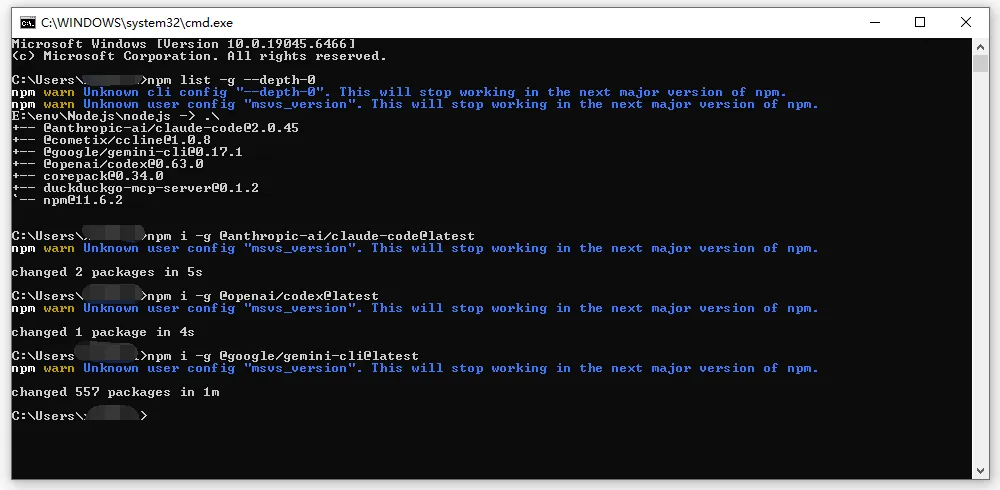
(3) Test Installation
Important
This step is very important. You must run the commands to test, because running these commands will generate the configuration directories for each CLI in your user directory, which is necessary for subsequent operations!
Claude Code
Enter the following command in a Windows or macOS terminal. If you see the content shown in the image, or a selection prompt appears, Claude Code is installed successfully
claude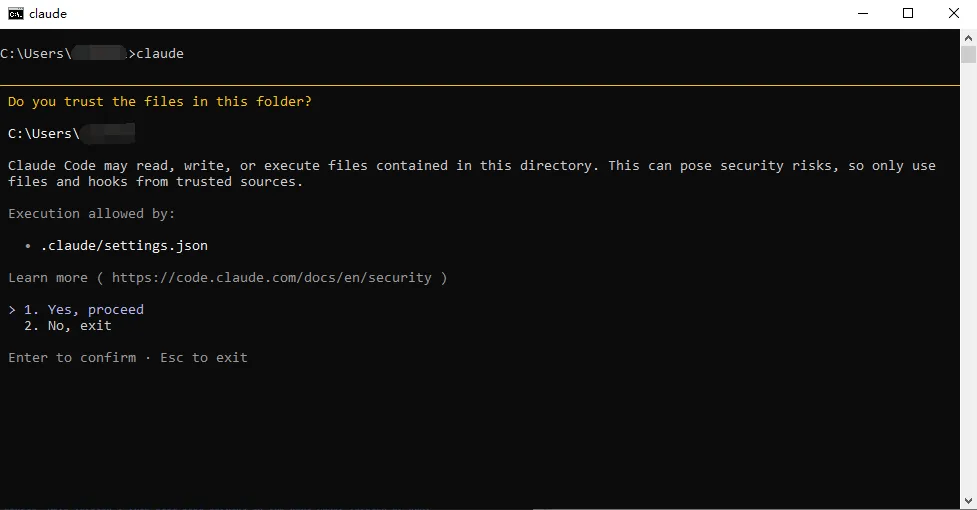
The second step is very important. You must follow the link and run the command to configure
- Click Claude Code cannot connect to Anthropic service to navigate, and follow the tutorial to run the command before continuing with the individual CLI configuration tutorials
Codex
Enter the following command in a Windows or macOS terminal. If you see the content shown in the image, or a selection prompt appears, Codex is installed successfully
codex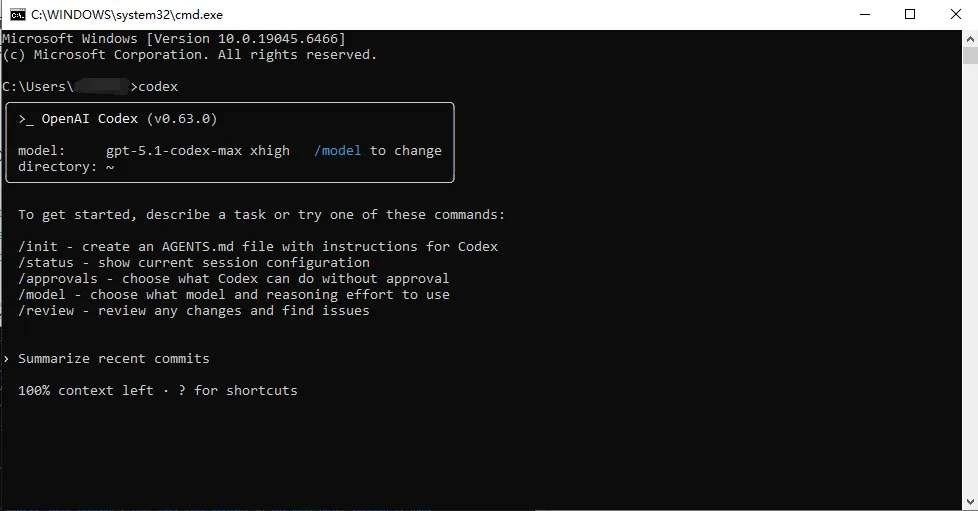
Gemini
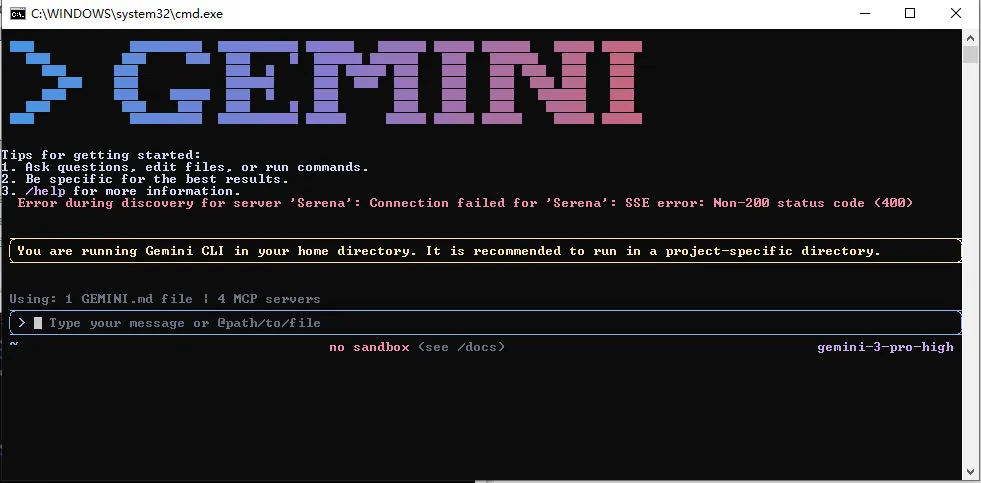
Enter the following command in a Windows or macOS terminal. If you see the content shown in the image, or a selection prompt appears, Gemini is installed successfully
gemini