
CC-Switch CLI Usage
Author: goswitch
Updated: 2026-06-13T10:02:01.000Z
Tip
CC-Switch CLI is suitable for servers, SSH, macOS terminals, and automation scenarios. If you prefer a graphical interface, you can continue using the previous CC-Switch tutorial.
CC-Switch CLI


Command-line management tool for Claude Code, Codex, Gemini, OpenCode, and OpenClaw
Unified management of multiple AI coding CLI provider configurations, with support for MCP, Skills, prompts, local proxies, and environment checks.
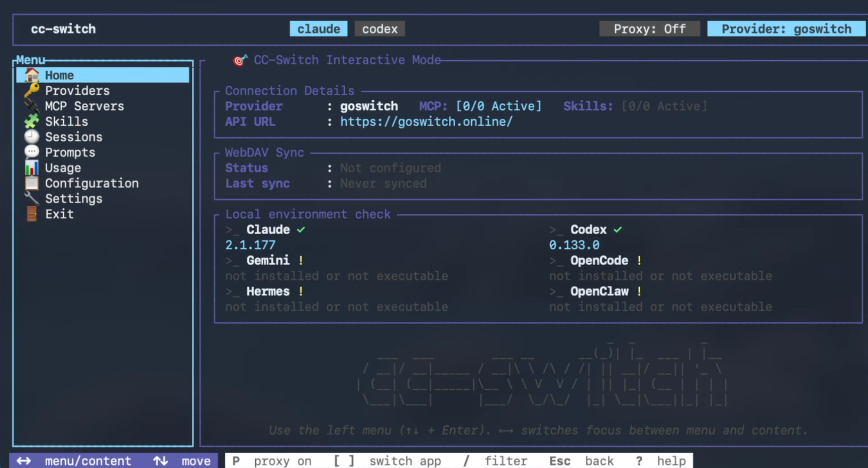
What is CC-Switch CLI
CC-Switch CLI is the command-line version of CC-Switch, suitable for servers, SSH, macOS terminals, and automation scenarios.
It consists of two parts:
- Full CLI Commands: You can use commands to view provider lists, switch, check environments, sync MCP, manage Skills, manage prompts, set local proxies, etc.
- Full TUI Interface: Run
cc-switchto enter the terminal graphical interface, where you can add Providers, select GoSwitch templates, fill in API Keys, save and switch configurations just like the desktop version.
If you're only configuring GoSwitch for the first time, we recommend using the TUI first. After configuration is complete, daily switching, checking, and troubleshooting can be done directly with CLI commands.
Installing CC-Switch CLI
For macOS and Linux, we recommend using the one-click install script:
curl -fsSL https://github.com/SaladDay/cc-switch-cli/releases/latest/download/install.sh | bashBy default, it installs to ~/.local/bin. If the terminal says cc-switch not found, make sure ~/.local/bin is in your PATH.
Manual Installation
Windows
Go to GitHub Releases to download cc-switch-cli-windows-x64.zip, extract it, and place cc-switch.exe in a PATH directory, or run it directly from the current directory:
.\cc-switch.exeMacOS
curl -LO https://github.com/saladday/cc-switch-cli/releases/latest/download/cc-switch-cli-darwin-universal.tar.gz
tar -xzf cc-switch-cli-darwin-universal.tar.gz
chmod +x cc-switch
sudo mv cc-switch /usr/local/bin/

# If you encounter "cannot verify developer" prompt
xattr -cr /usr/local/bin/cc-switch
Linux x64
curl -LO https://github.com/saladday/cc-switch-cli/releases/latest/download/cc-switch-cli-linux-x64-musl.tar.gz
tar -xzf cc-switch-cli-linux-x64-musl.tar.gz
chmod +x cc-switch
sudo mv cc-switch /usr/local/bin/
Linux ARM64
curl -LO https://github.com/saladday/cc-switch-cli/releases/latest/download/cc-switch-cli-linux-arm64-musl.tar.gz
tar -xzf cc-switch-cli-linux-arm64-musl.tar.gz
chmod +x cc-switch
sudo mv cc-switch /usr/local/bin/
Two Usage Methods
Enter TUI Interface
cc-switchTo directly configure a specific app, add --app:
cc-switch --app claude
cc-switch --app codex
cc-switch --app gemini
TUI is suitable for first-time configuration. You can select the GoSwitch template, fill in the API Key, then save and switch to that Provider.
Using CLI Commands
cc-switch provider list
cc-switch provider current
cc-switch provider switch <id>
cc-switch env tools
cc-switch env check
claude is the default app. Use --app to manage other apps:
cc-switch --app codex provider list
cc-switch --app gemini provider current
CLI commands are suitable for servers, scripts, and daily troubleshooting, and can also be given to Claude Code / Codex for direct execution.
Pre-Configuration Preparation
First confirm that the target CLI is installed:
cc-switch env toolsWe recommend running the target CLI or its help command once to let it create its configuration directory:
claude --help
codex --help
gemini --help
Then create a token for the corresponding group in GoSwitch:
- Claude Code: Create a CC Group token
- Codex: Create a Codex Group token
- Gemini: Create a Gemini Group token
Configuring GoSwitch
For first-time configuration, we recommend using TUI because it displays GoSwitch templates and the fields you need to fill in.
Tip
Below we use Claude Code as an example. Codex and Gemini follow the same configuration method, just use --app codex or --app gemini to switch the target app.
- Run the following command to enter the interactive interface:
cc-switchTo directly configure Codex or Gemini:
cc-switch --app codex
cc-switch --app gemini- Select
Providerson the left to enter the provider management page, then add a new provider.
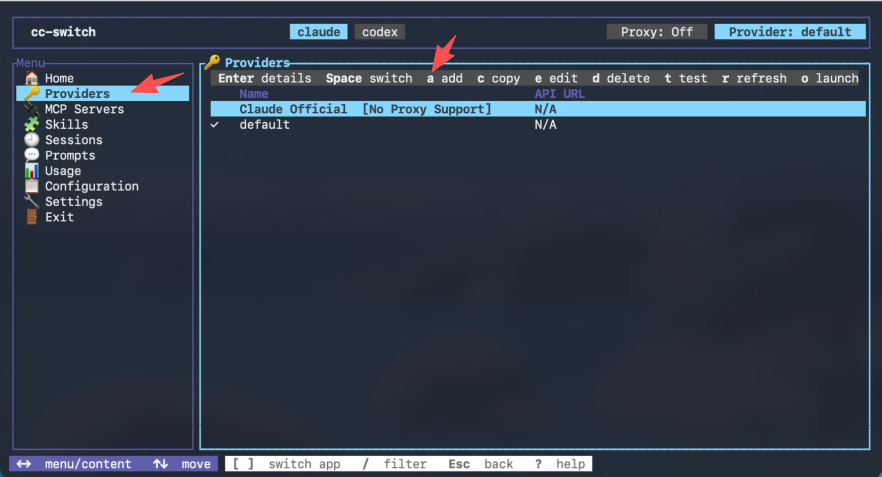
- Select
* GoSwitchfrom the templates.
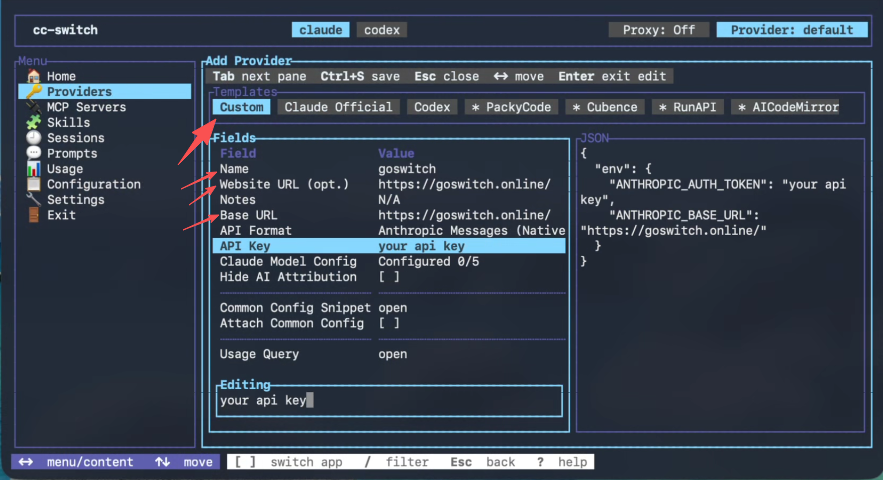
- Fill in the
API Keywith the token you copied from GoSwitch, then save.
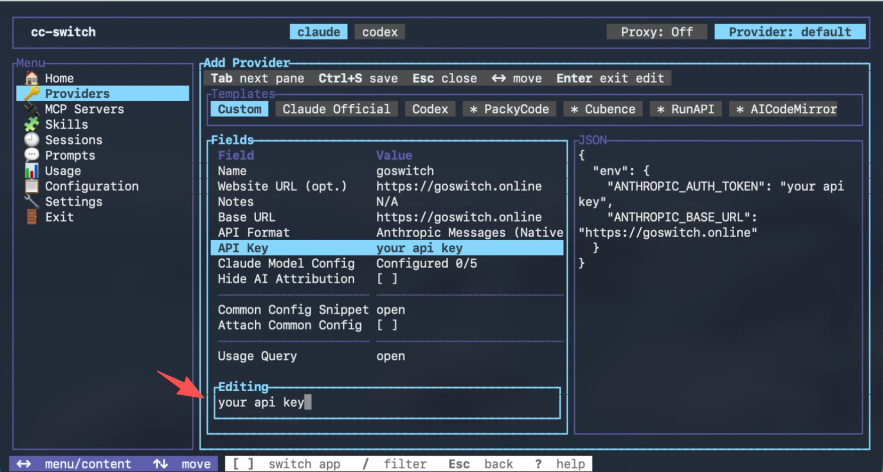
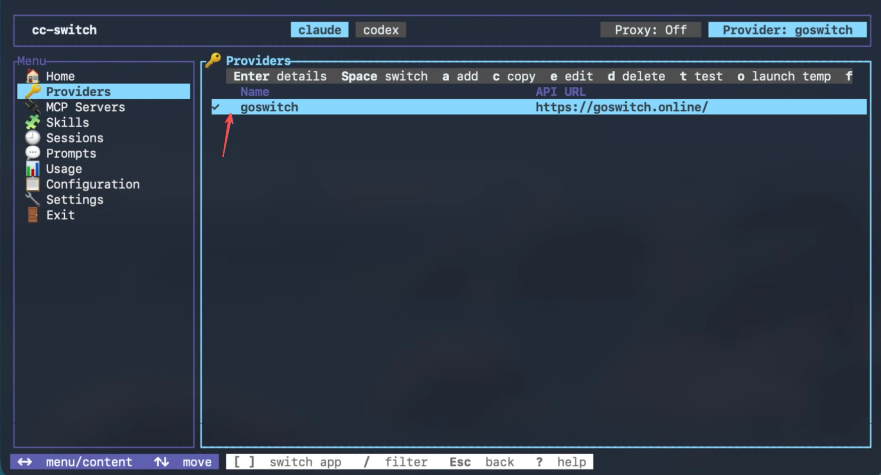
- Return to the provider list and confirm that the newly added GoSwitch Provider is selected.
- If you're configuring Claude Code, go to
Settings, findSkip Claude Code initial installation confirmation, and confirm it's enabled.
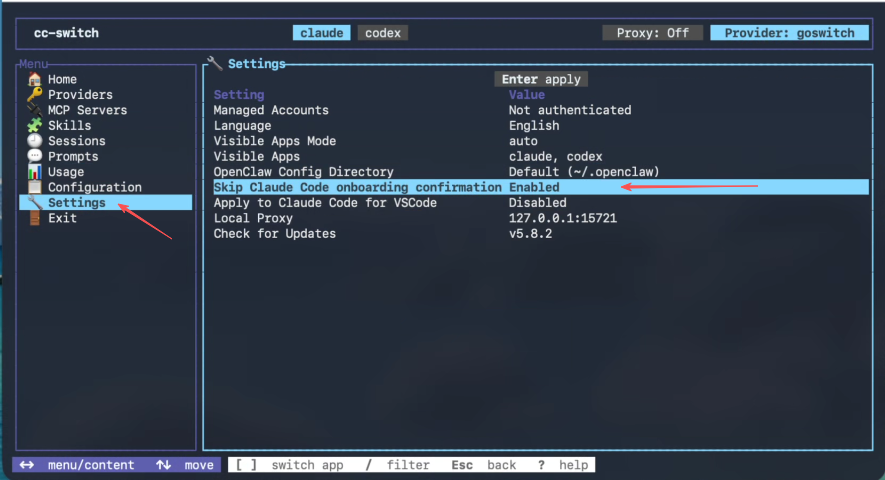
This option writes hasCompletedOnboarding=true to ~/.claude.json, preventing Claude Code from stopping at the installation confirmation process on first launch.
- Open the corresponding CLI to test if it can have a normal dialogue:
claudeFor Codex and Gemini respectively:
codex
gemini
Common Commands
cc-switch                         # Enter interactive interface
cc-switch env tools               # Check if local CLI is installed
cc-switch env check               # Check for environment variable conflicts

cc-switch provider list           # View Claude providers
cc-switch provider current        # View current Claude provider
cc-switch provider switch <id>    # Switch Claude provider

cc-switch --app codex provider list
cc-switch --app gemini provider list

cc-switch provider stream-check <id> # Check provider streaming response
cc-switch provider fetch-models <id> # Fetch remote model list
cc-switch update                     # Update CC-Switch CLI
When managing Codex, Gemini, OpenCode, or OpenClaw, use the global --app parameter to specify the target app.
Advanced Usage: Let AI Assistants Operate CC-Switch CLI
If you're already working in Claude Code or Codex, you can directly have them call the cc-switch command to check and switch configurations.
For example, you can say:
Help me run cc-switch provider list to see what Claude Providers are currently available.Help me run cc-switch --app codex provider current to confirm if Codex is currently using GoSwitch.Help me run cc-switch env check --app claude to check if there are environment variables overriding the configuration.Help me switch to the GoSwitch provider, then run claude to test if it can respond normally.This approach is suitable for people already familiar with terminals. The AI assistant handles executing commands and explaining results, while you only need to confirm key operations like switching Providers, overriding configuration files, or deleting configurations.
FAQ
Provider switch didn't take effect
First confirm that the target CLI has initialized its configuration directory. Run once:
claude --help
codex --help
gemini --help
Then switch the Provider again.
Environment variables overriding configuration
If the system has ANTHROPIC_API_KEY, OPENAI_API_KEY, GEMINI_API_KEY and other environment variables set, the target CLI may read environment variables first, causing the configuration written by CC-Switch CLI to not take effect.
You can run:
cc-switch env check --app claude
cc-switch env check --app codex
cc-switch env check --app gemini