
Claude Code Configuration
Author: goswitch
Updated: 2026-06-13T10:02:01.000Z
Windows
- Press "Win+R" on your keyboard, enter the following and press Enter to open the Claude Code configuration directory
%userprofile%\.claude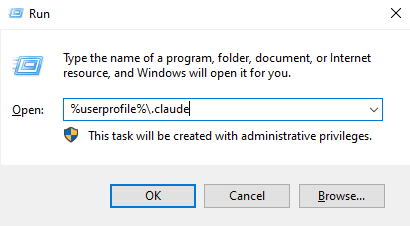
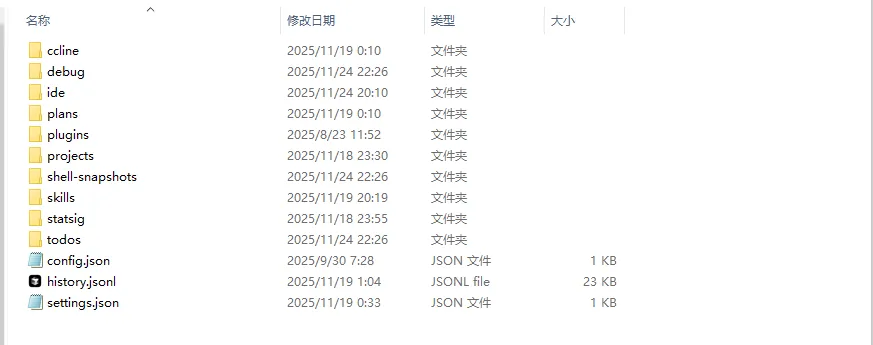
- The directory contents are shown in the image. If
settings.jsondoesn't exist in the directory, you need to create it manually
- settings.json: Claude's main configuration file, used to configure the relay address, ApiKey, hooks, plugins, etc.
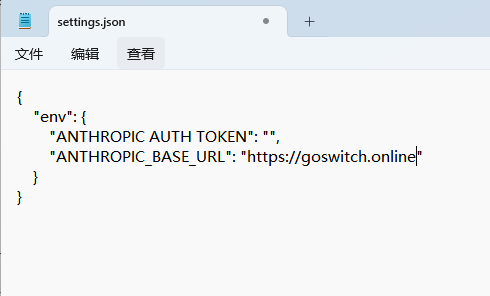
- Write the following content to
settings.json
{
  "env": {
    "ANTHROPIC_BASE_URL": "https://goswitch.online",
    "ANTHROPIC_AUTH_TOKEN": "xxx",
    "CLAUDE_CODE_ATTRIBUTION_HEADER": "0",
    "CLAUDE_CODE_DISABLE_NONESSENTIAL_TRAFFIC": "1",
    "CLAUDE_CODE_DISABLE_TERMINAL_TITLE": "1"
  }
}
- Review Create API Token, create a token in the CC group in GoSwitch, and replace the
xxxpart above

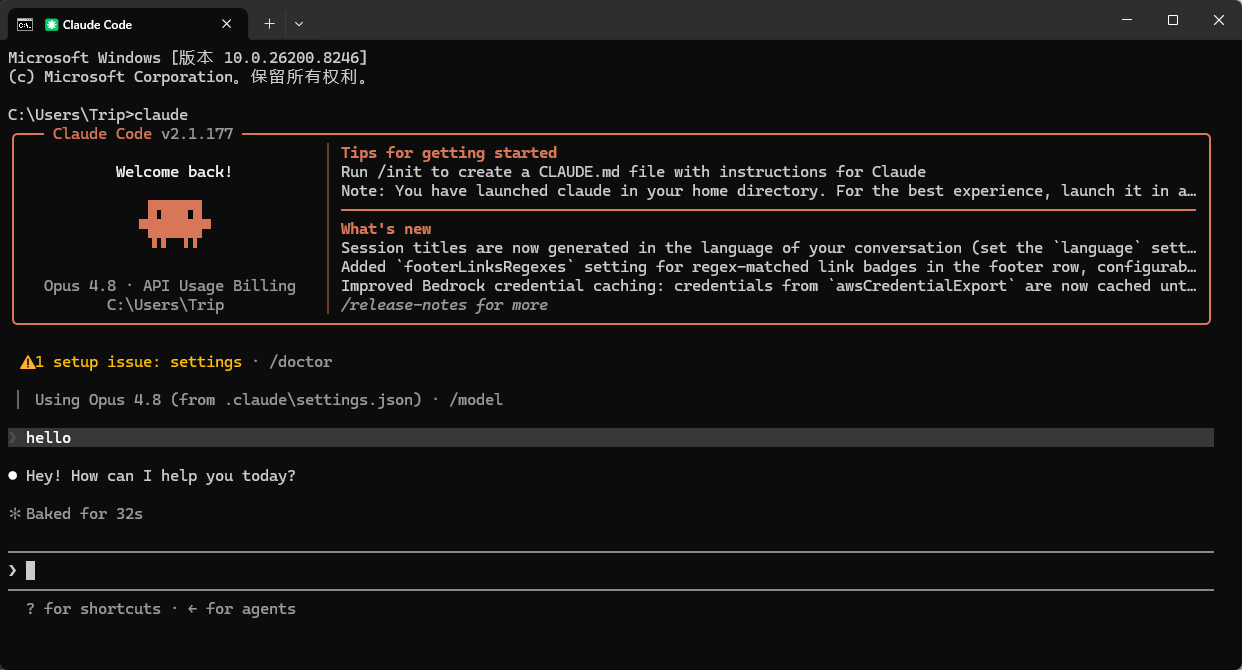
- Run
claudein the Windows terminal. When the dialogue interface appears, test the conversation. If you receive a reply, configuration is successful
MacOS
- Press "Command+Shift+G" in Finder, enter the following path and press Enter to open the configuration directory
~/.claude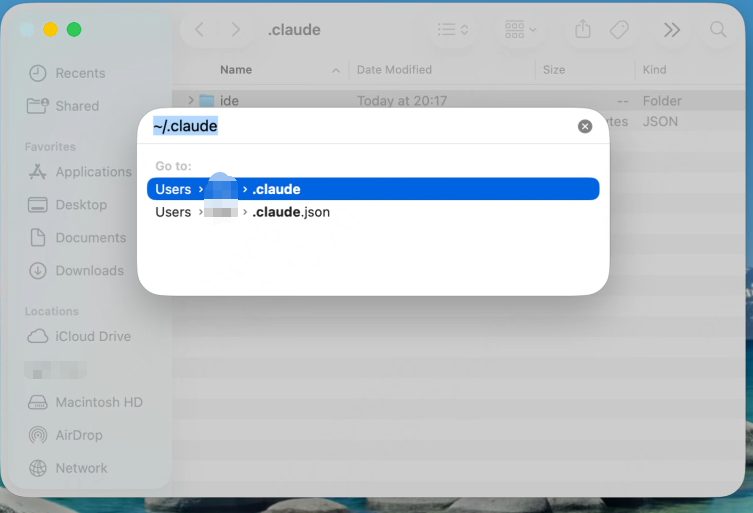
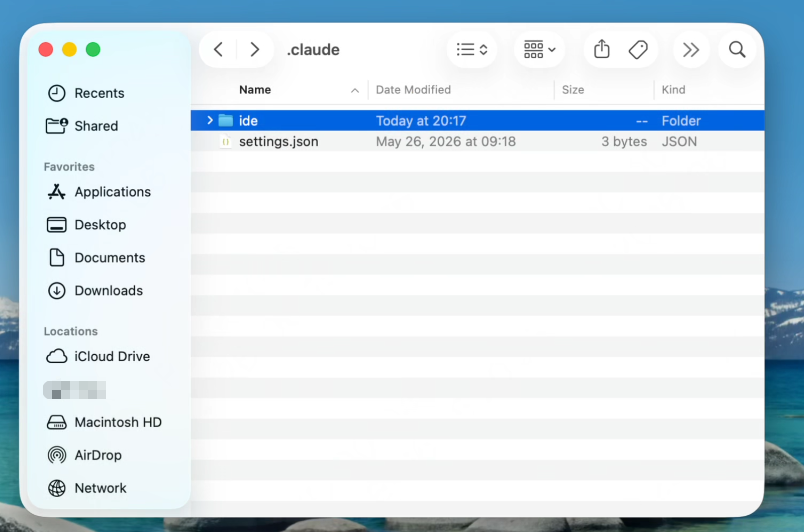
- If
settings.jsondoesn't exist in the directory, you need to create it manually
- settings.json: Claude's main configuration file, used to configure the relay address, ApiKey, hooks, plugins, etc.
- Write the following content to
settings.json
{
  "env": {
    "ANTHROPIC_BASE_URL": "https://goswitch.online",
    "ANTHROPIC_AUTH_TOKEN": "xxx",
    "CLAUDE_CODE_ATTRIBUTION_HEADER": "0",
    "CLAUDE_CODE_DISABLE_NONESSENTIAL_TRAFFIC": "1",
    "CLAUDE_CODE_DISABLE_TERMINAL_TITLE": "1"
  }
}
- Review Create API Token, create a token in the CC group in GoSwitch, and replace
xxxabove
- Run
claudein the terminal. When the dialogue interface appears and responds normally, configuration is complete
Important
Note: If you still encounter errors after configuration, such as a prompt requiring login, please refer to the following link for resolutionclaude-code-cannot-connect-to-anthropic-service